How Claude Can Get Product, UX and Engineering to Stop Arguing
Vague epics, alignment meetings and "the app doesn't work that way," collapsed into one loop: Living Mocks, HTML mockups built from the app's own code, decisions grounded in what that code can do, and Claude Design keeping everything aligned.
I’m building RuckPace, an Android app for rucking: walking with a weighted backpack for exercise. Seeing one small design change in the real app takes me about ten minutes. Rebuild, install, tap through to the screen, then do it all again for dark mode.
So I moved the deciding out of the app. Claude builds HTML versions of the screens from the app’s own colors, fonts and shapes, and keeps them next to the code. I call them Living Mocks, and they’re also what Claude Design needs, since it only works with HTML. Other tools can make HTML mocks. What Claude adds is the decision loop around them: options with real costs, a design system that keeps every new design consistent with the app, and a handoff straight to Claude Code.
Figma shows what the app should be. Only the code shows what it is, and Living Mocks are built from it.
I’m a solo developer, so I wear all three hats. I still hit the same problems every product team has: vague asks, designs the code can’t support, estimates nobody trusts. The loop is built for that: options, real costs, and a record I can come back to, so a new change doesn’t quietly reverse a decision I made weeks ago.
Below, I explain how Living Mocks work, show three times they saved me, and finish with the prompts to try it yourself.
Click any image to see it full size.
How Living Mocks work
Most mockups are throwaway. Living Mocks stick around: they’re where I try ideas, what Claude Design builds from, and the record of what was decided.
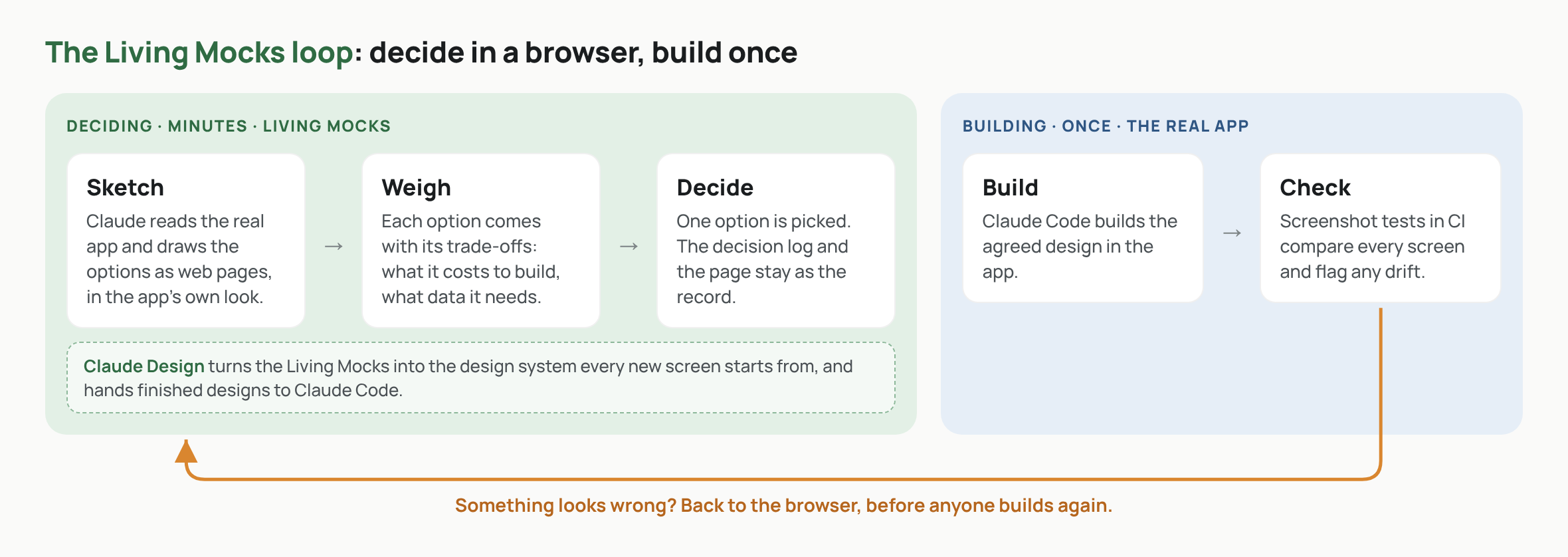 Deciding is fast and happens often. Building is slow and happens once.
Claude sketches the options, I weigh them, and one gets picked, all in minutes. Then Claude Code builds it once.
Built from the app’s own code
Living Mocks use the app’s own colors, fonts and shapes, so the design and the code start from the same source. Claude also reads the real app while it draws, so every option comes with what it costs to build and what data it needs.
Because they start from the app’s own look, a Living Mock can rearrange a screen and change its emphasis, but it never needs a new color or component built first.
Every version on one page
In August I redesigned the summary you see after each walk. In the real app, comparing each idea against the old screen in light and dark mode would have meant several builds, settings changes and screenshots. Living Mocks gave me the options on one page, and then the one I picked in light and dark.
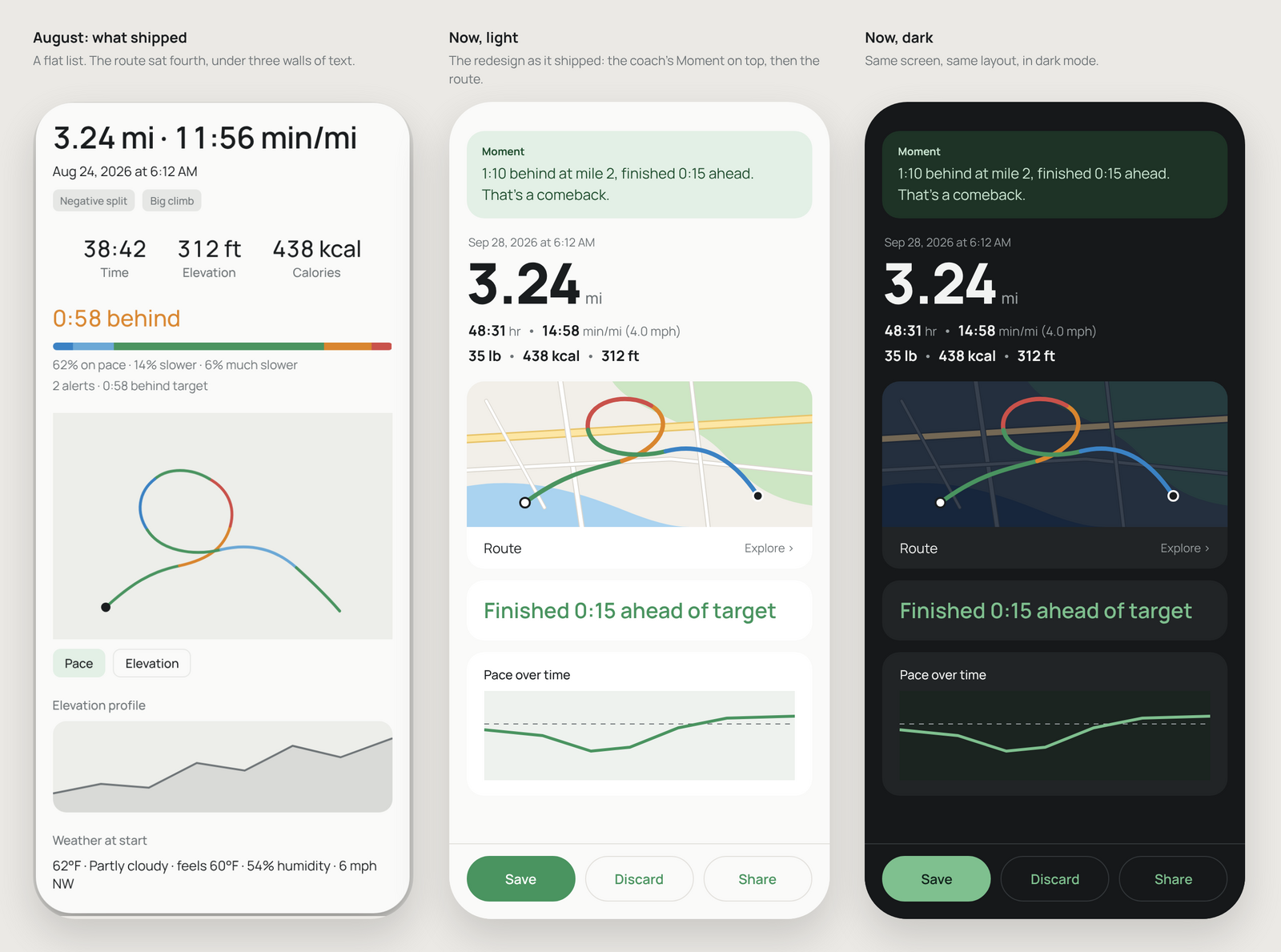 The after-the-walk screen, redesigned in August to fix a flat list that buried the route under three walls of text. Left, what shipped before. Middle and right, the redesign in light and dark.
Deciding takes minutes instead of afternoons, and bad designs get caught before they reach anyone’s phone.
Claude Design keeps every new design consistent
A folder of Living Mocks is great for deciding one screen at a time, but it’s still a folder of files.
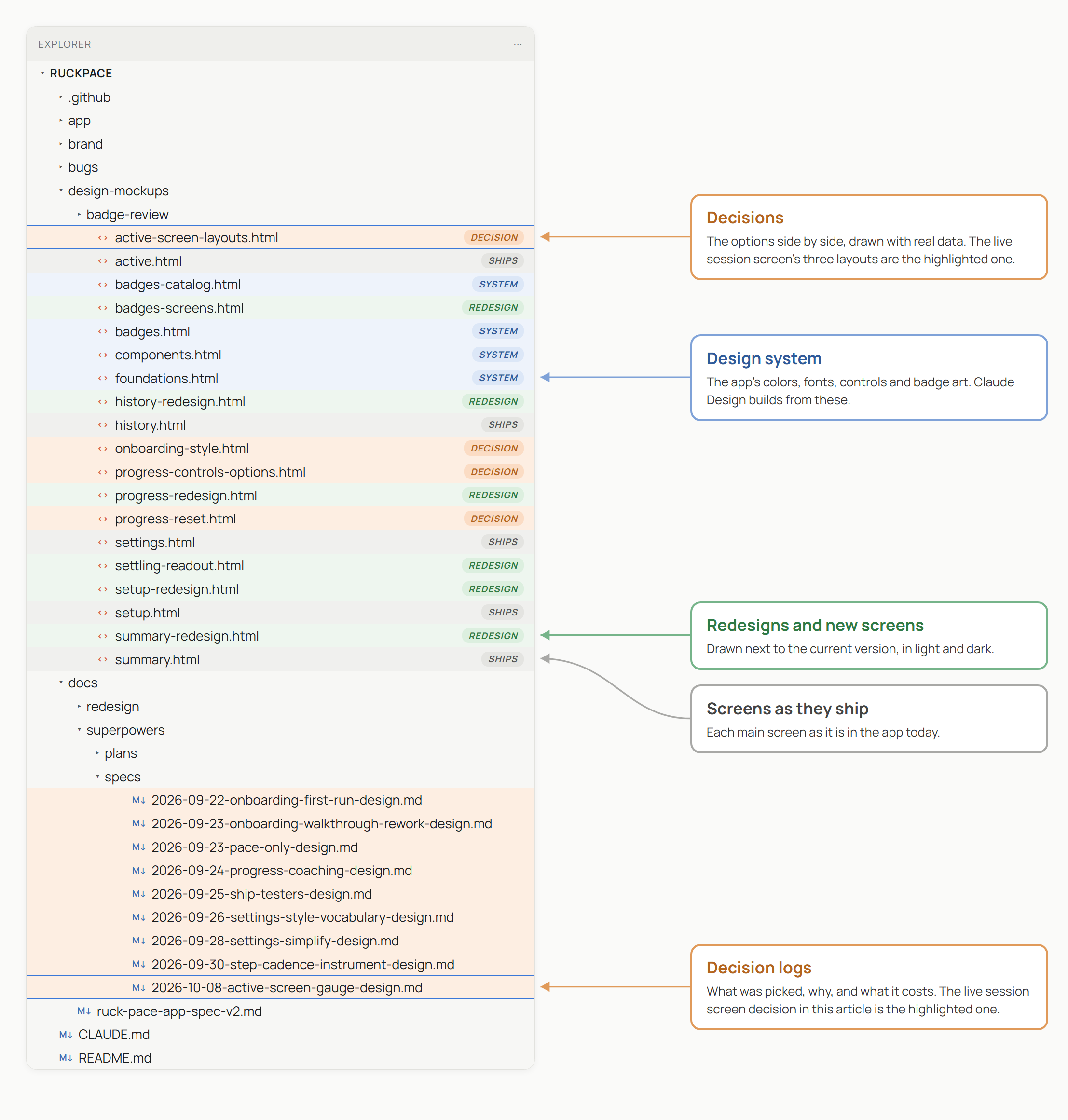 The RuckPace repo. The live session screen’s three layouts and its decision log are highlighted. Every decision gets a log, so a new change doesn’t accidentally reverse a long-standing decision.
Claude Design reads the Living Mocks and builds a design system from them: one kit of the app’s colors, fonts, buttons, cards and badge style. Design systems aren’t new. What’s different is that this one comes from Living Mocks that already match the code, so I never had to describe it.
- Everything new stays aligned. A new screen, a store image or a tester handout starts from the same kit, so it matches the app’s colors, type and components without me checking each one by hand.
- Finished designs go straight to building. Claude Design hands a design to Claude Code to build in the real app.
Living Mocks are where decisions get made. Claude Design keeps everything after them consistent.
Screenshot tests catch drift
Screenshot tests in CI compare every screen of the real app on every change, so if the app drifts from what was agreed, the build goes red. Nobody has to notice.
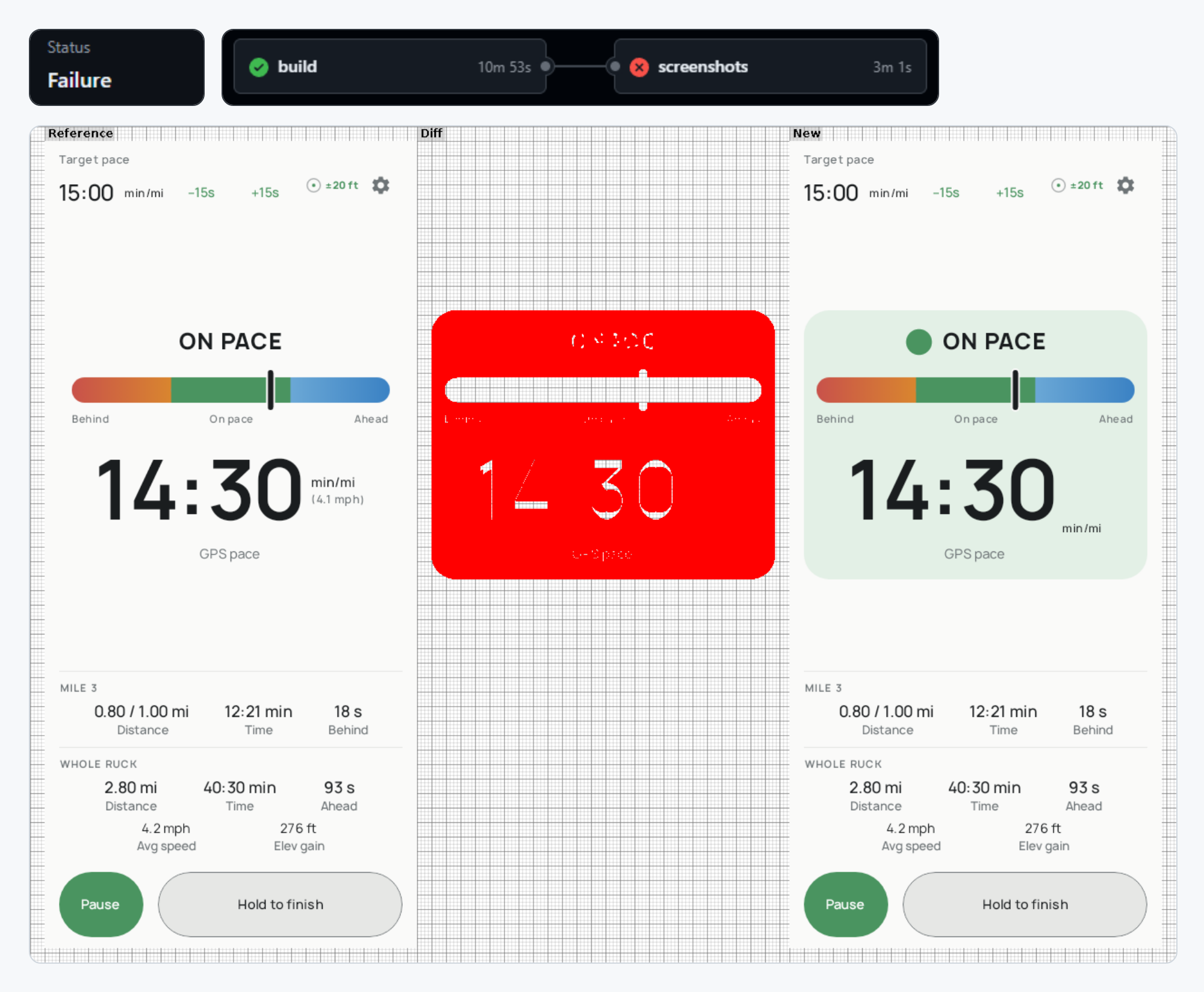 A real red build, run #257. I deliberately brought back the old “on pace” dot and tinted card. The build passed, and the screenshot tests stopped it and showed exactly what changed.
Why not just use Figma?
Figma is still the better tool for some jobs. But the design file and the app are two different things, and only one of them is the truth. Every handoff between them loses a little.
| Figma mockups | Living Mocks + Claude Design | |
|---|---|---|
| Where it starts | A separate design file, rebuilt in code by hand | The app’s own colors, fonts and shapes, next to the code |
| Getting to a decision | Design with typed-in examples, hand off, find the problems, redesign | Options, real data and what each costs to build, on one page, decided in one sitting |
| Drift after launch | Someone has to notice | Screenshot tests in CI turn the build red |
| Pixel-exact layout | Exact control and measurements while designing, though of the design file rather than the app | Close, not exact, for a native app: HTML in a browser, not the app’s own rendering. For a web app, it’s the real thing |
| Sketching and design teams | A free canvas before any look exists, edited by several people at once in the tool designers already use | Works best once the app’s look exists. Files in a repo, reviewed like code |
Three times it paid off
1. The live session screen that showed every number at once
When you pull your phone out of your pocket mid-ruck, you want a quick status check: am I on pace? Instead, the app’s complexity had drifted into the one screen that matters most. You saw seven numbers, and out of breath, you couldn’t tell which one mattered. On a typical team, fixing that would go like this:
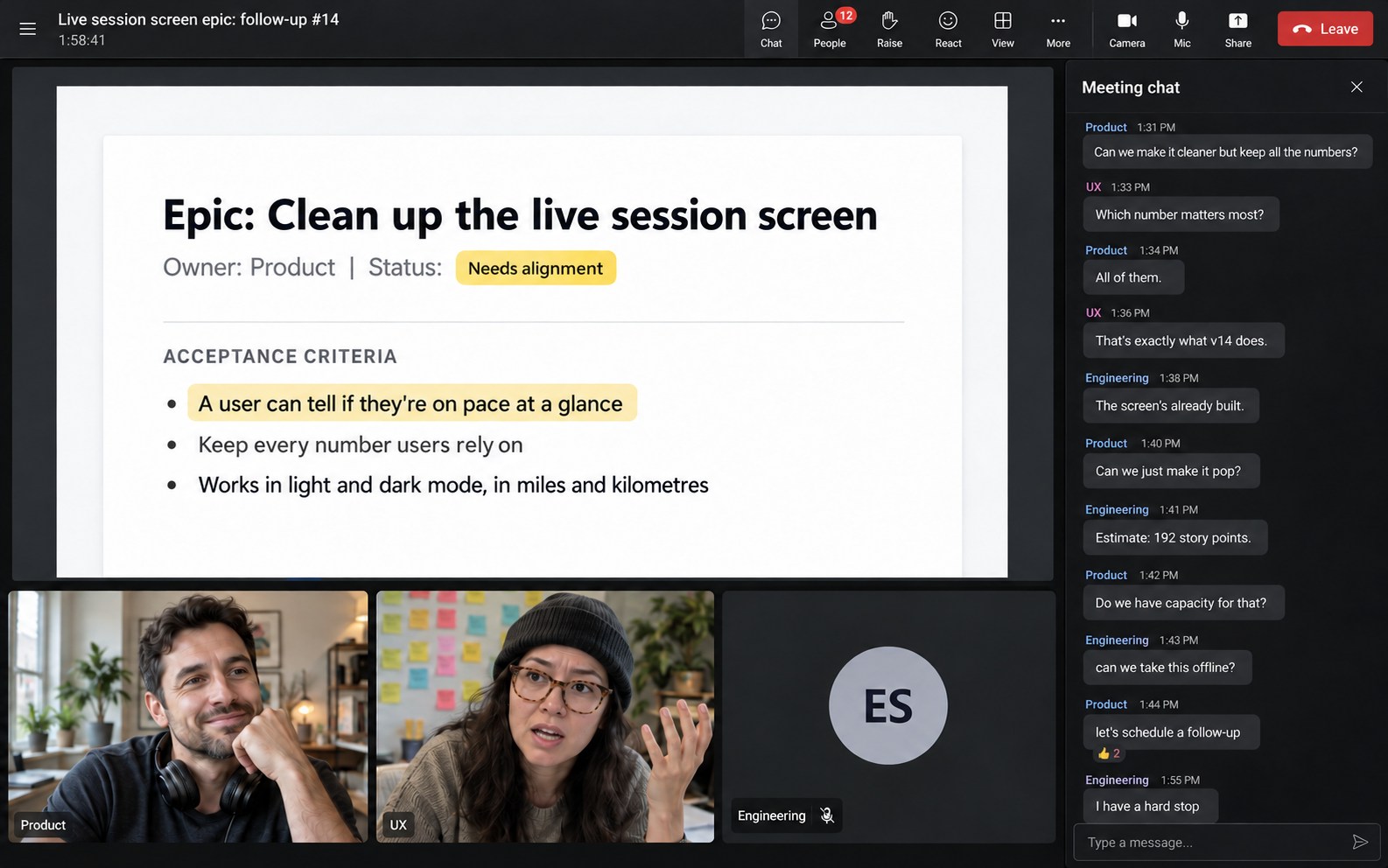 A fictional meeting, but one that’s happened all too often. Product hands over a vague epic. UX iterates for weeks. Engineering says the app doesn’t work that way. Everyone schedules a follow-up.
Here’s how it actually went. I’m a solo developer, so there were no meetings, just me wearing all three hats. I told Claude the screen was a mess. It read the real screen’s code and drew today’s layout next to three options, all with the same moment of the same ruck, and outlined what each option moved or removed.
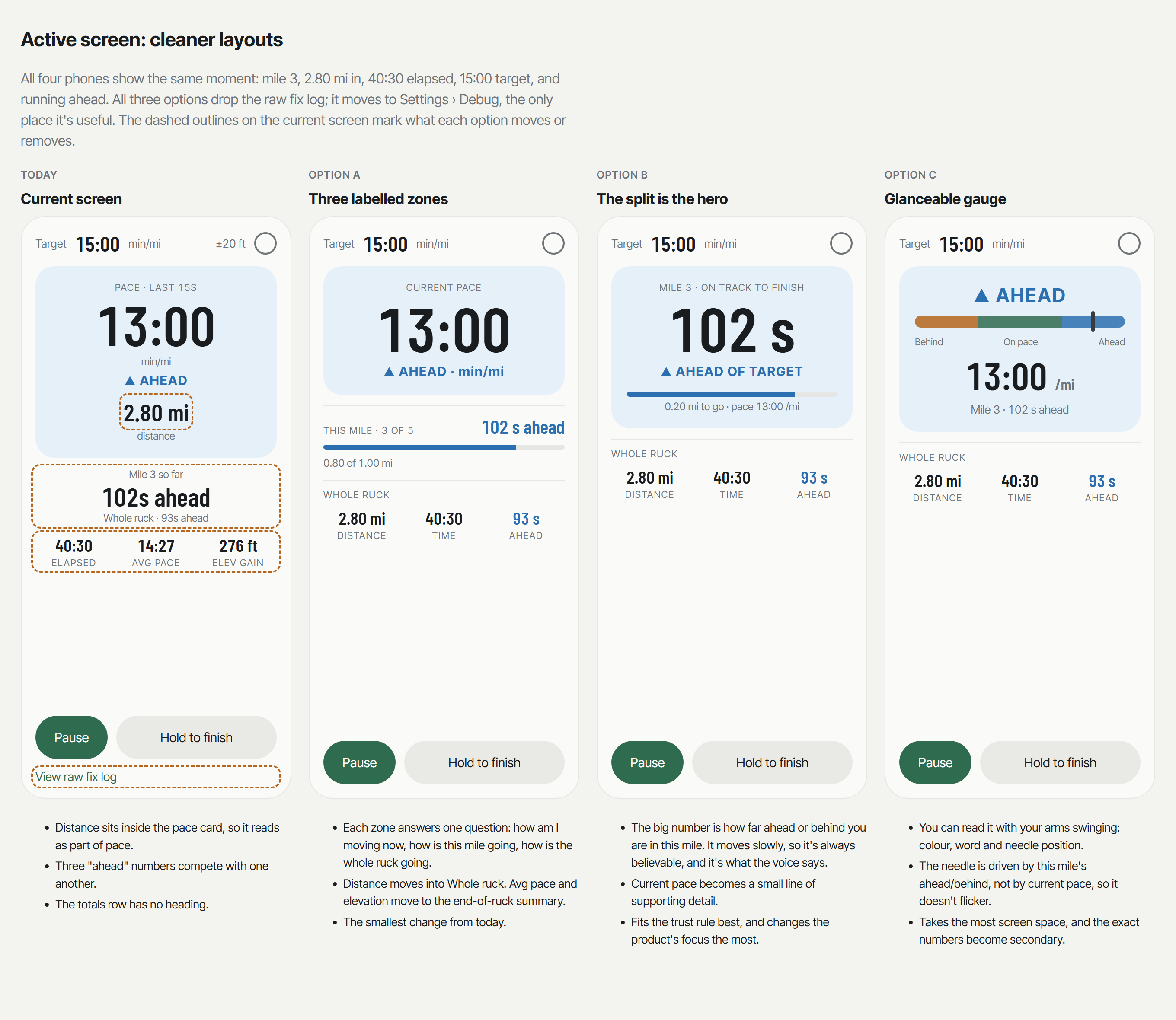 Today’s screen and three options, each with its trade-offs written underneath.
- A, three labelled zones. Now, this mile, the whole ruck. The smallest change.
- B, the mile is the hero. The big number becomes time ahead or behind on this mile, and pace shrinks to a footnote.
- C, a gauge. Behind, on pace or ahead, readable with your arms swinging, with the pace under it.
I picked C. A gauge answers “am I on pace?” without reading a single digit. Everything else moved into labelled sections underneath, and the GPS log moved to the debug settings, where it belonged all along.
From “this screen is a mess” to the gauge on my phone took a day. The phone still caught what the mocks couldn’t. First the colors: the green zone covered three quarters of the bar, the red end looked orange, and the blue end looked pale.
Then a real ruck caught a mistake in how the gauge worked. The needle followed how far ahead or behind I was on the current mile, and that number barely moves. So the needle sat in the middle while the app warned me nine times that I was off pace. Now it follows my pace right now, the same number shown under it.
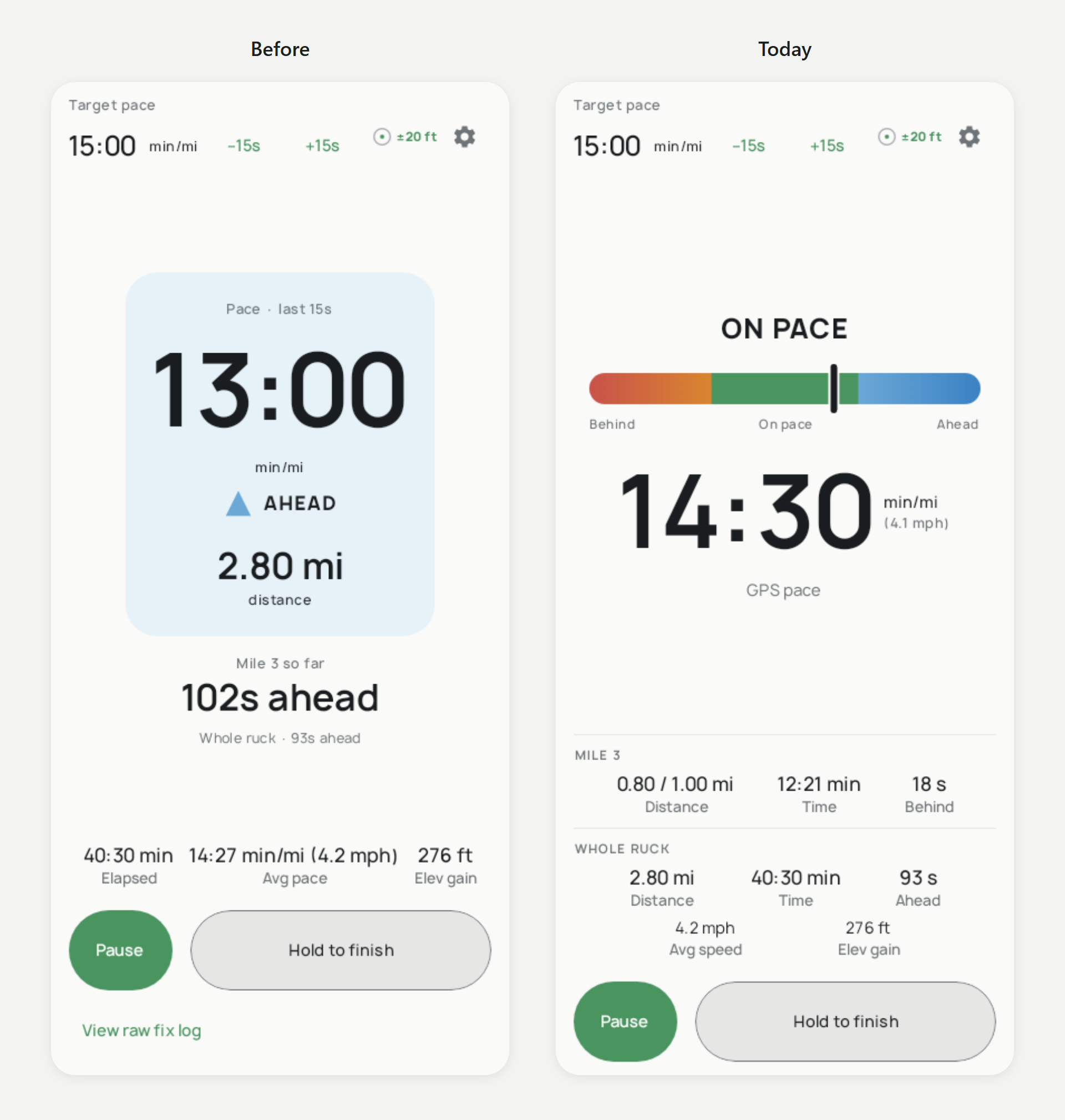 The real app before and today, from its own screenshot tests.
2. Designing 128 badges before any existed
RuckPace gives you badges for milestones, like your first 100 walks, and for occasions, like walking on Halloween. Before any badge existed in the app, I built a small design system for them in Living Mocks: two shapes, five metals, and rules for the art.
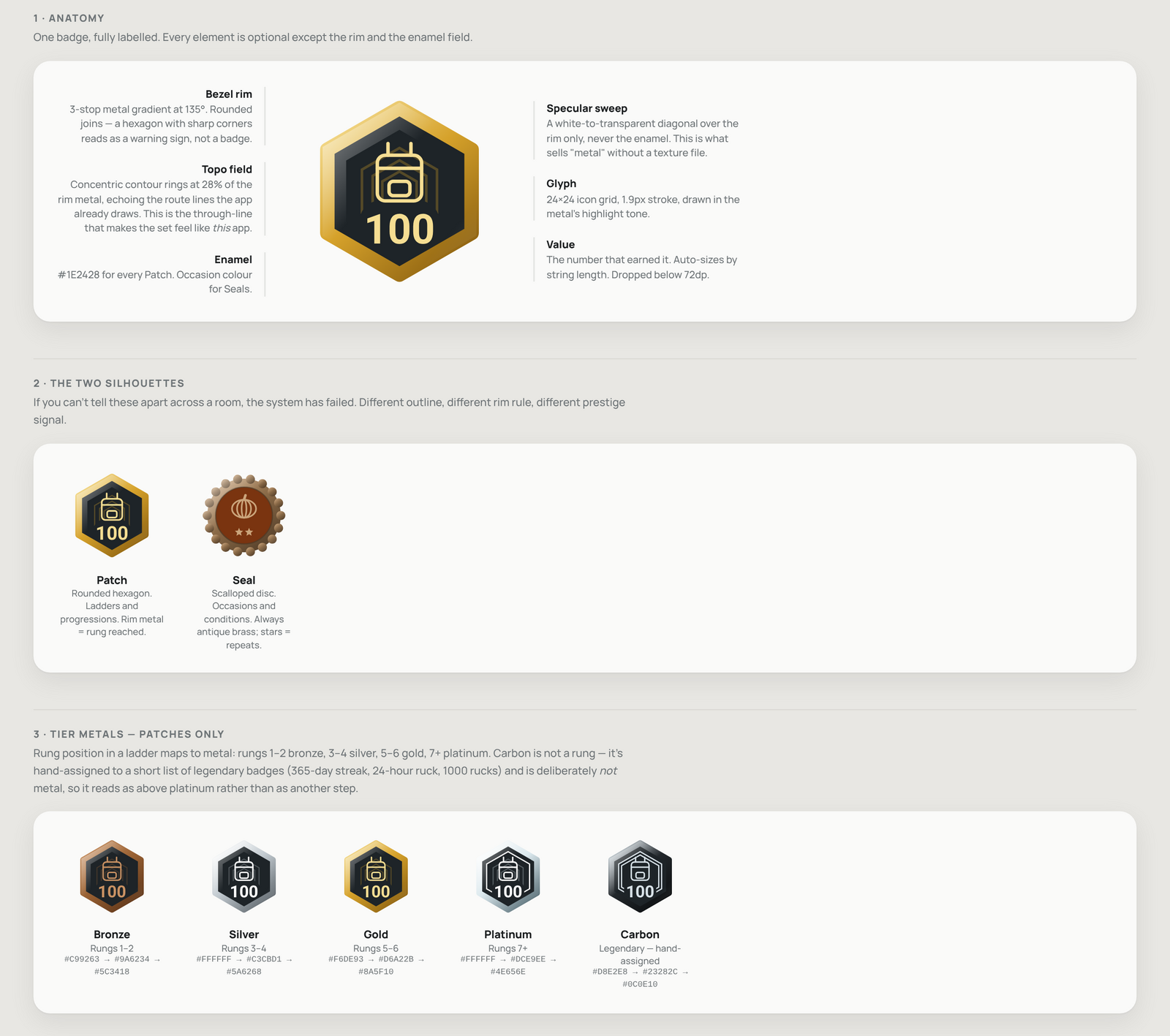 How every badge is put together, shown with the badge art the app ships today.
- Two shapes. Hexagons for milestones, round seals for occasions.
- One look in light and dark mode, so there’s one set of art to get right.
- Unearned badges stay in order, so you can see the next one waiting.
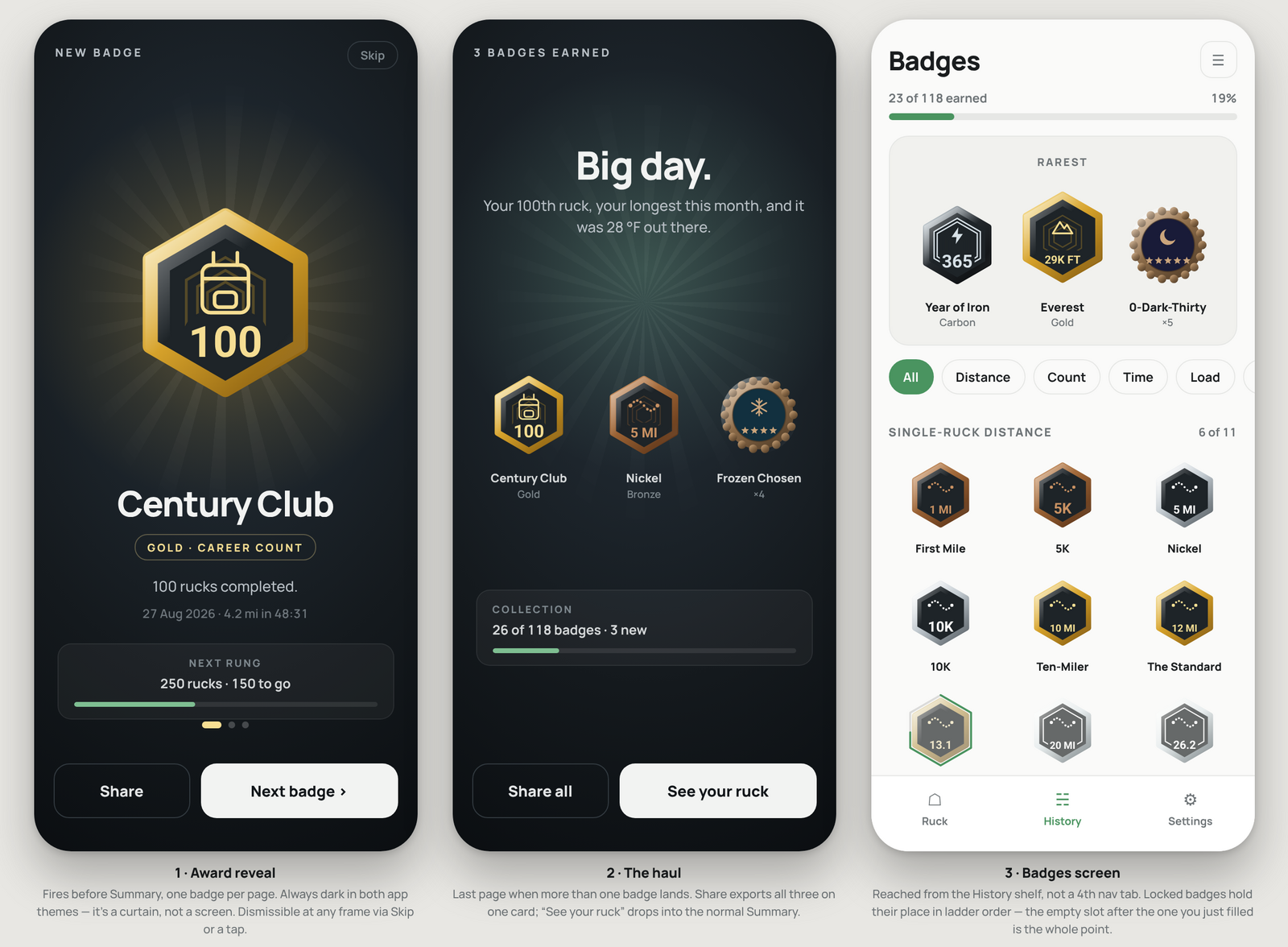 All six screens the badges appear on, designed before any badge existed in the app.
Seeing the whole set together showed that the two highest levels looked duller than gold. Color had run out, so they got rings.
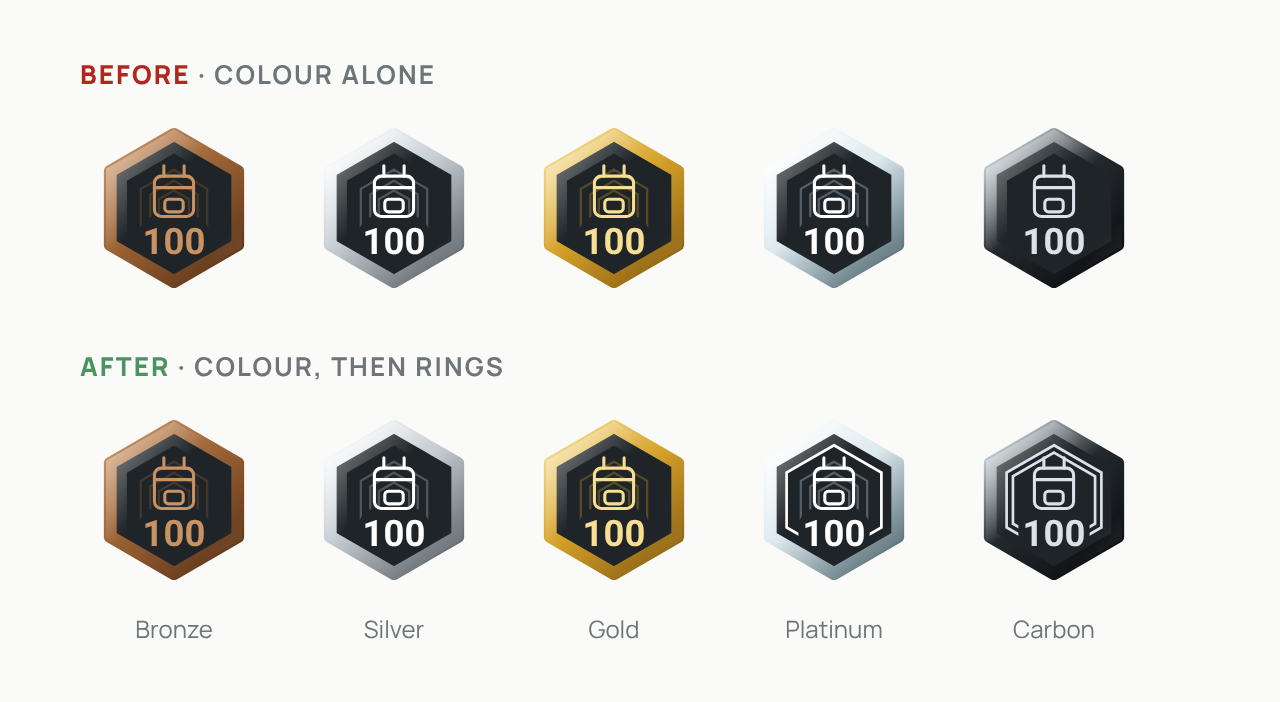 Five levels, bronze to carbon. Rings on the top two make the hardest badges look like the hardest badges.
3. Fixing the badges that shipped looking wrong
Some rough icons shipped anyway, and over the next week I replaced them. Every image below is the app’s own screenshot from just before and just after each fix.
Unearned badges were empty grey outlines. Now they show their real art, faded.
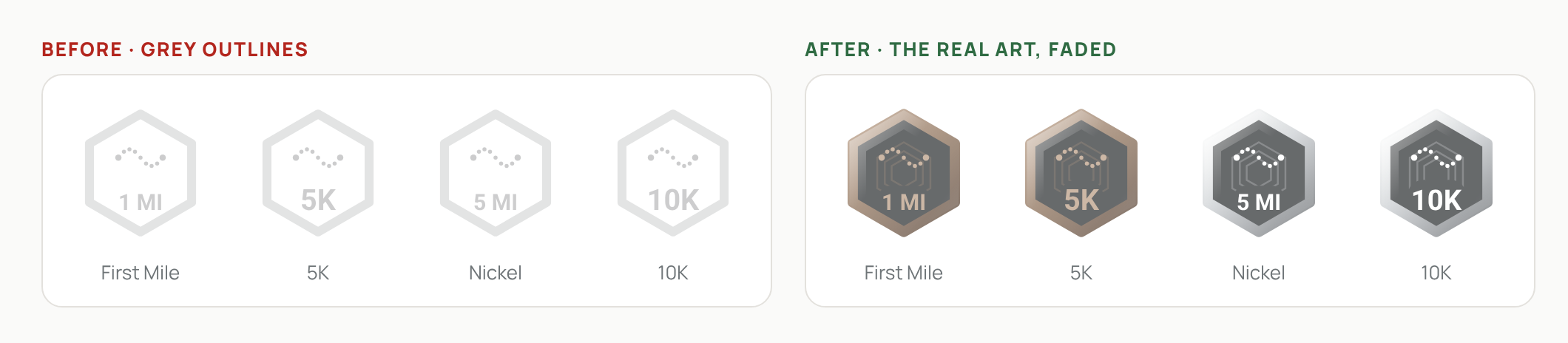 Same four badges, before and after.
That made the bad icons impossible to miss. The backpack looked like a padlock, and twenty-one badges had the wrong picture.
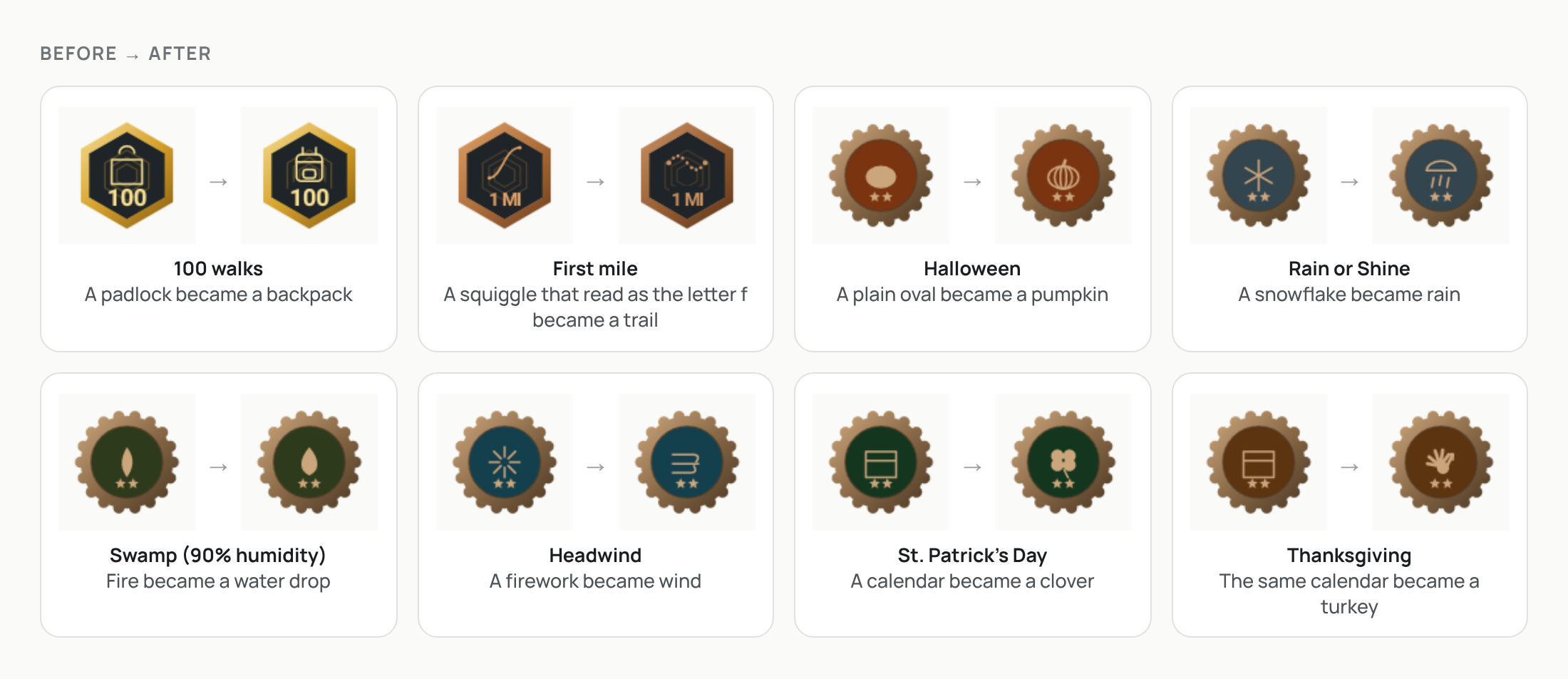 Every “before” passed the app’s automated checks.
Automated checks can tell you two badges are different. Only looking can tell you whether one of them is a pumpkin.
How product, UX and engineering stopped arguing
Product gets decisions to make: options, a recommendation, a real cost for each instead of a t-shirt size, and a record of why, so a later change doesn’t undo an earlier decision by accident.
UX gets everything side by side: before and after, dark and light, biggest and smallest, with real data.
Engineering gets something it can build once, with screenshots that say whether it matches.
Try it yourself
You don’t need my setup, or even a finished app. I started RuckPace from zero. Once it had a working base, I started its look and feel with a single app icon and drew the palette from it. All you need is Claude Code and a folder. Five prompts, in order, are the whole loop.
1. Build the foundations. Once per app. Starting fresh:
Here is my app icon (or a few sentences on the app's mood). Build a palette from it:light and dark colors, a type pairing and corner shapes. Put it in design-mockups/foundations.html,showing every token in light and dark.If your app already has a theme in code:
Read the app's theme (colors, fonts, spacing, shapes) in <path to theme files>.Build design-mockups/foundations.html that shows every token in light and dark.Use only values that exist in the code. If something is missing, list it rather than invent it.2. Mirror the screen as it ships. Once per screen you plan to change.
Build design-mockups/<screen>.html to match <screen source file> exactly as it ships today.Use the tokens from foundations.html and real data from <test fixture, log or database>.Put light and dark side by side.3. Ask for options, not a design.
Problem: <one sentence, from the user's side, e.g. "I can't tell what I'll pay until the last step of checkout">.In design-mockups/<screen>-options.html, draw today's screen next to three options,all showing the same moment with the same data. Under each one, list what it moves,what it removes, what it costs to build and which files change. Recommend one, and say why.Use only existing tokens and components.4. Write down the decision.
I picked option <X>. Write docs/decisions/<date>-<topic>.md with the problem, every optionwith its cost, the pick, and why. Link the mock.5. Build it once, and lock it in.
Build option <X> in the real app. Add screenshot tests for light and dark,and tell me what you couldn't check.A few habits make the difference:
- Same data in every option. Otherwise you’re comparing data, not designs.
- Tag every mock as system, ships, redesign or decision, so the folder explains itself.
- Keep the mocks in the repo, next to the code they describe, and commit them with the change.
- Make the cost part of the option. “Build: move what’s there” settles more arguments than a nicer picture does.
- Check the build on a real device before you call it done.
Where it’s still rough
- Living Mocks go stale. Fix: have CI drop the real app’s screenshots into each page, like the badge catalog already does.
- They don’t replace real user testing. Not even a mock can show what full sun and polarized sunglasses do to a screen. Fix: walk it outside before calling a screen done.
- Decision logs go stale too. When the ruck changed the needle, the gauge’s log still described the old one until I sat down to update this article. Fix: the plan that changes a decision also edits its log.
- “Needs work” notes get ignored. The bad icons were flagged and shipped anyway. Fix: a Claude Code hook that warns before flagged work ships.
- They don’t replace users. Living Mocks speed up my decisions, not my users’. Fix: user acceptance testing and A/B experiments with real users.
A build still takes ten minutes. The difference is that I no longer spend those ten minutes asking a question. By the time I press build, the answer is already on the page.